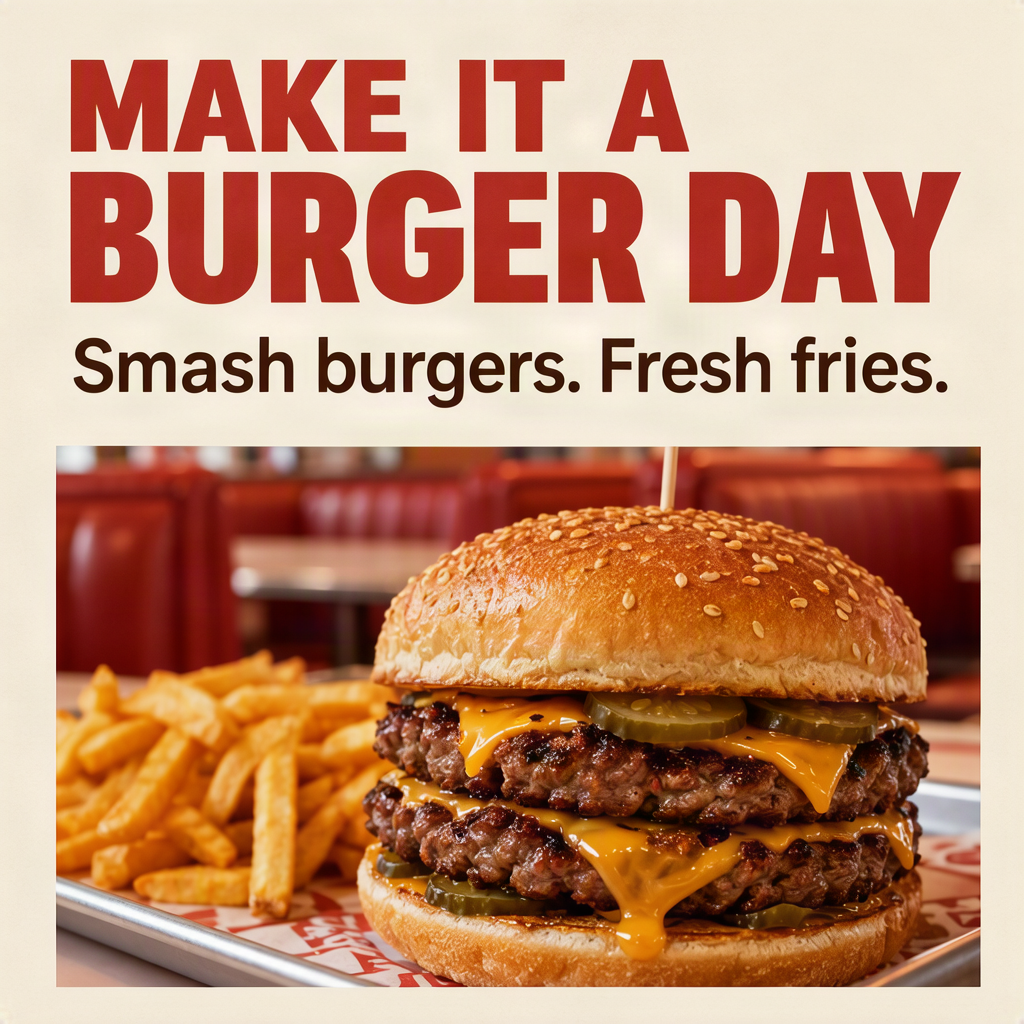
Restaurant · Lunch promotion
Burger lunch special
An Instagram lunch promotion for a neighborhood burger restaurant. Show a juicy double smash burger with melted cheddar, pickles and a side of crispy fries. No invented prices or restaurant name.
DESCRIBE THE PICTURE. KEEP THE DETAILS.
Turn an idea into a detailed image prompt. Set the subject, style and exact words, then refine the prompt and generate your image here.
Use the prompt on its own, or optionally generate an image on the right.
The prompt below goes directly to MOSS-Image. Edit it before generating.
Generate only when you choose. Your prompt stays editable.
Its text and objects are not editable layers. Use manual layout when exact wording or positions matter.
1 credit / image
Only Generate calls AI. Editing, switching modes and downloading never submit a new generation.
First generate or paste a prompt in the middle column. Image generation is a separate, optional action.
Review the prompt in the middle column, then select Generate image.
One image from your complete promptAI images are flattened; lettering and placement may vary. for editable text and exact positions.
FROM A BRIEF TO A REAL RESULT
Real MOSS-Image outputs, with their layout recipes.
Loading an example is free.
Restaurant · Lunch promotion
An Instagram lunch promotion for a neighborhood burger restaurant. Show a juicy double smash burger with melted cheddar, pickles and a side of crispy fries. No invented prices or restaurant name.
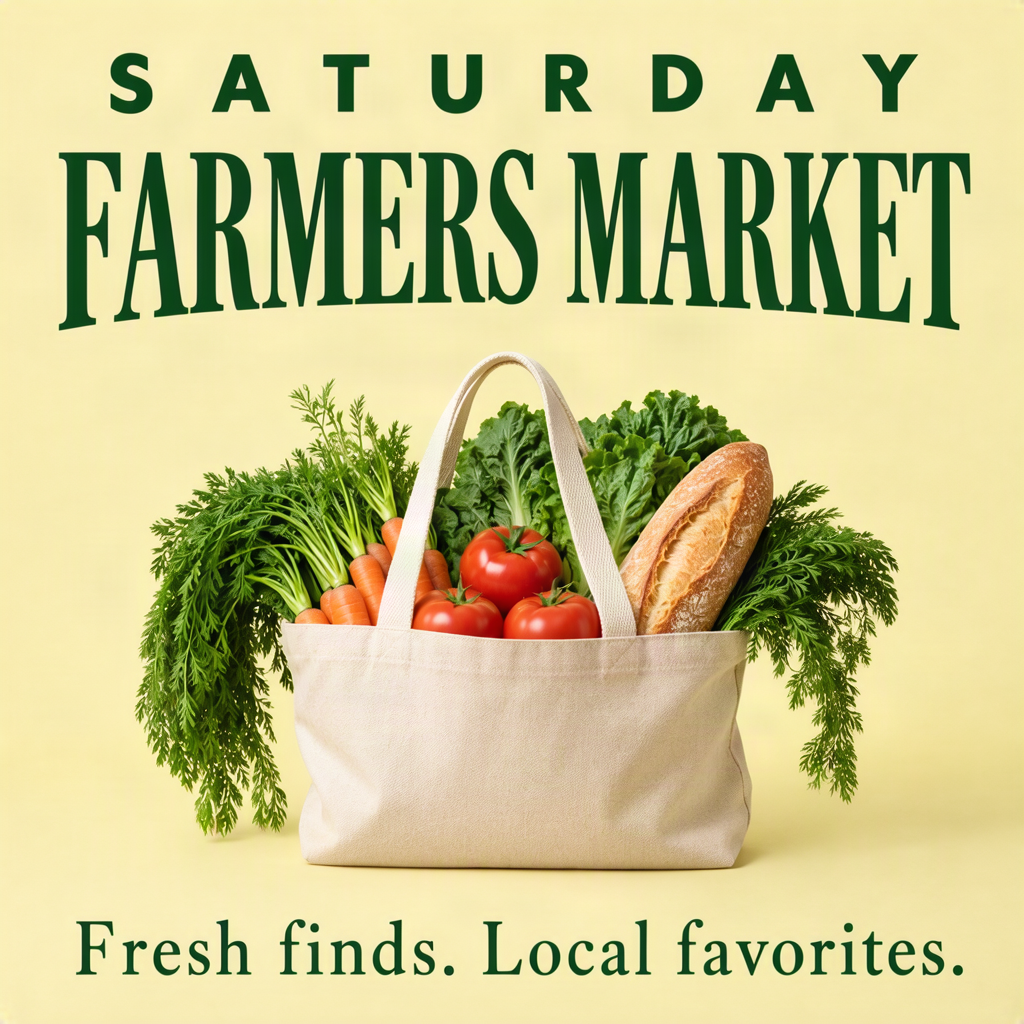
Community · Event flyer
A friendly social media flyer inviting neighbors to a Saturday farmers market. Show a tote bag filled with seasonal tomatoes, carrots, leafy greens and a baguette. Do not invent a location, opening time or vendor names.
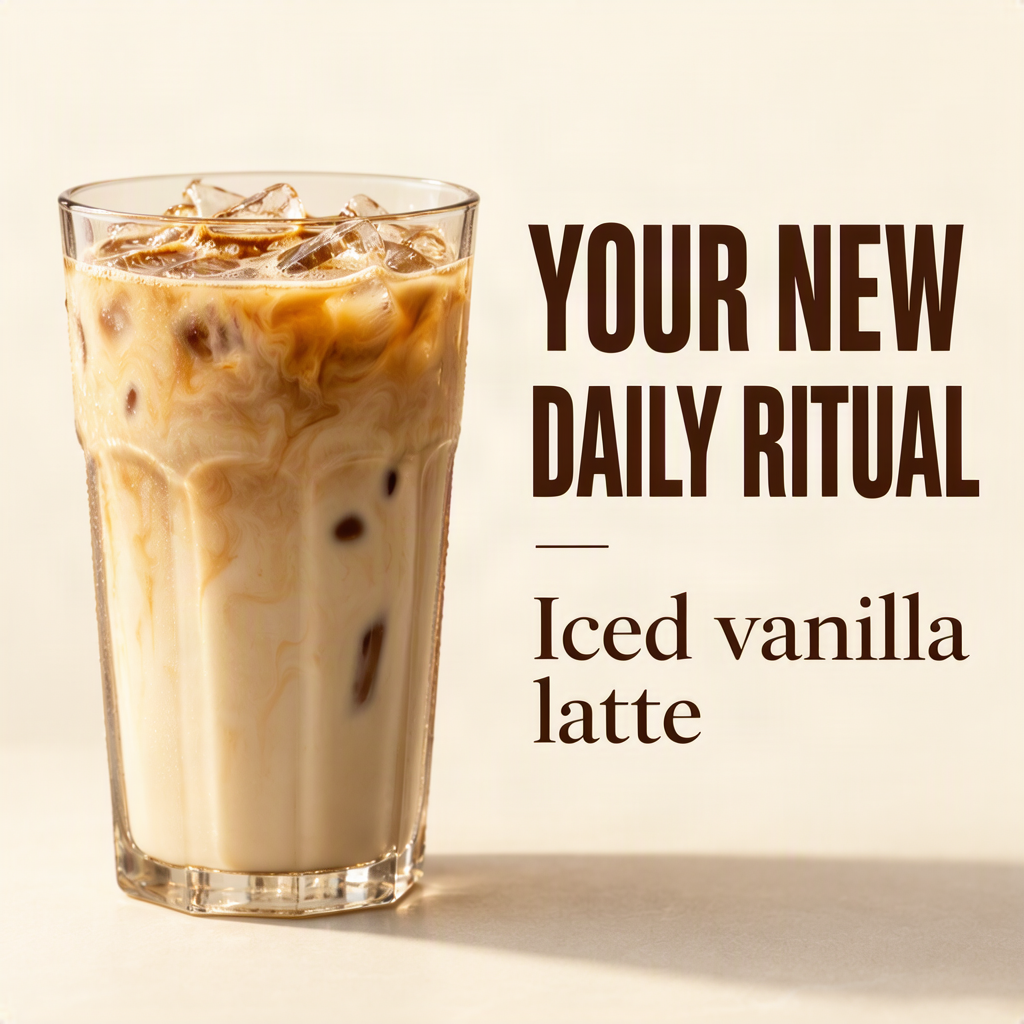
Coffee shop · New menu item
A new-menu-item announcement for an independent coffee shop: an iced vanilla latte in a clear glass, visible ice cubes and layered espresso and milk. No invented price, cafe name or promotional offer.
Choose a layout, add images, then click text to edit. Export matches the canvas. Need an image? Generate an optional AI asset.
Choose an editable flyer, then add your own offer or event details.
1024 × 1280 px · Drag to position · Arrow keys to nudge · Guides are excluded from export
Text or backgrounds baked into an image cannot be separated by dragging. Use transparent product assets and editable text layers for precise control.
Upload, position, resize, edit and export in your browser. Only Generate asset sends your image description to the paid AI service.
Name the subject, the setting and any details that matter. Put the actual headline or caption in the separate words field so it is not confused with instructions.
Check the subject, wording and placement. Edit the prompt directly or copy it into your MOSS-Image workflow. Generating a prompt does not generate a picture.
Generate a complete image beside your prompt, without leaving this page. For a fixed layout, add your own image and editable text in the poster editor. Local composition and PNG export do not call an AI model.
A FEW USEFUL DETAILS
It turns your brief into a natural-language image prompt. You can review and edit that text before copying it or generating an image on this page. The examples pair an editable written caption with a real, pre-generated MOSS-Image output and the layout JSON used to create it. Loading an example is free.
Generate two prompts per day. Sign in for one free image each UTC day at up to 1,048,576 pixels, subject to shared-network limits and daily free capacity. All tools share that image allowance. Additional images use credits only when you choose to generate. The poster editor and manual PNG export are free.
No. A text model writes the prompt. MOSS-Image then uses that prompt to generate a picture, if you choose the image step. Click Generate image beside your prompt when ready. Signed-in users get one daily free image at eligible sizes, subject to network and site limits; additional images use credits.
Yes. Enter the exact wording in the words field, including punctuation and line breaks. Review the output before using it. Generated images can still contain text errors; use editable text layers in the poster editor when the wording must be exact.
Placement instructions guide the model, but they are not a pixel-perfect guarantee. For fixed text positions and image frames, use the manual poster editor. It exports the composition shown on its canvas.
This prompt tool starts with text. You can upload an image to the poster editor and place text around it. Uploading does not automatically retouch the photo or remove its background.
Text expansion produces a plain-text prompt. Each preset also includes a visual layout and model-ready JSON that you can copy or send to the image workspace. Editing your brief does not automatically rebuild the preset layout. The prompt guide explains when to use each format.
Start with a short idea or an existing description. Add the subject, visual style, exact words and any placement instructions. The prompt enhancer turns that brief into an editable caption for MOSS-Image.
Review the result before using it. Keep product names, prices and event details accurate. You can copy the prompt into another workflow without generating or paying for an image here.
CHOOSE YOUR LAYOUT WORKFLOW
MOSS-Image can interpret structured layout JSON with text and subject bounding boxes. Our saved examples include the model-ready JSON used for their images, so you can inspect and copy a working layout recipe. Generating a new text prompt does not automatically create a new JSON layout.
For exact wording and fixed positions, choose Poster editor above. Add your photo or an AI asset, move separate text and image layers, then export the canvas as a PNG. This is local composition; the editor does not claim that an AI image will follow every coordinate exactly.